
Custom Document Generation
Generate packing slips and way bills as part of your existing carrier selection API workflow using Document Blueprints.
About custom document generation
Shipium's custom document generation capability lets you automatically produce packing slips, way bills, and other custom-formatted documents as part of your existing API workflow. Documents are configured as Document Blueprints and returned base64-encoded in the API response alongside your standard carrier selection output.
How custom document generation works
Document Blueprints are ZPL (Zebra Programming Language) templates with dynamic placeholder values that Shipium populates at generation time. When a Document Blueprint is triggered — either by your API request or by the service method configuration on your carrier account — Shipium passes your shipment data through the template engine, replacing placeholders with actual values, and returns the rendered document base64-encoded in the response.
Shipium configures Document Blueprints and the underlying carrier service methods for your account. Once that setup is complete, the workflow follows three steps:
- Configure. Associate your Document Blueprint with your carrier account in the Shipium Console (way bills only), or confirm your blueprint ID with your Shipium team member (packing slips).
- Reference. Include the Document Blueprint ID in your API request (packing slips), or use the service method configured for your account (way bills).
- Receive. The rendered document is returned in the API response as a base64-encoded string in your configured format (ZPL, PNG, or PDF).
Document types
Shipium supports two custom document types. They serve different use cases and are triggered differently in the API.
Packing slips
A packing slip is an on-demand document generated alongside a standard outbound shipment. You trigger it by including a documentGenerationRequests array in the shipmentParameters of your API request. If you do not want a packing slip returned, omit documentGenerationRequests or pass an empty array.
Packing slips use a Shipment request type blueprint. Because a packing slip is generated after carrier selection and label creation, the shipment response is available to the template, including carrier data such as the tracking number and carrier name.
Contact your Shipium team member to have a packing slip blueprint configured for your account.
Way bills
A way bill is a label for internal carrier workflows such as will-call, employee pickup, or store-to-store transfers where there is no external carrier integration. Rather than calling a carrier API, Shipium generates the label directly using a Document Blueprint associated with your carrier account.
Way bills require a one-time configuration step in the Shipium Console to associate a Document Blueprint with your carrier account. Once configured, the way bill is returned automatically as part of the carrier label response whenever that service method is used; no additional API fields are needed.
Because a way bill is the label being generated for an internal carrier workflow, there is no external carrier and no tracking number for that label at generation time. Way bill templates can reference shipment and request data, including the ship date, but not a tracking number for the way bill itself.
Contact your Shipium team member to confirm the service method configured for your will-call workflow.
Configure a way bill in the Shipium Console
Before generating way bills, you need to associate a Document Blueprint with your carrier account. This is a one-time setup completed in the Shipium Console. Your Shipium team member will provision the carrier and service method for your account. The steps below cover the blueprint association that you complete.
Editing a carrier account affects every contract it is linked to. If your carrier account is shared across multiple fulfillment contexts, changes made here will apply to all of them.
-
Log in to the Shipium Console.
-
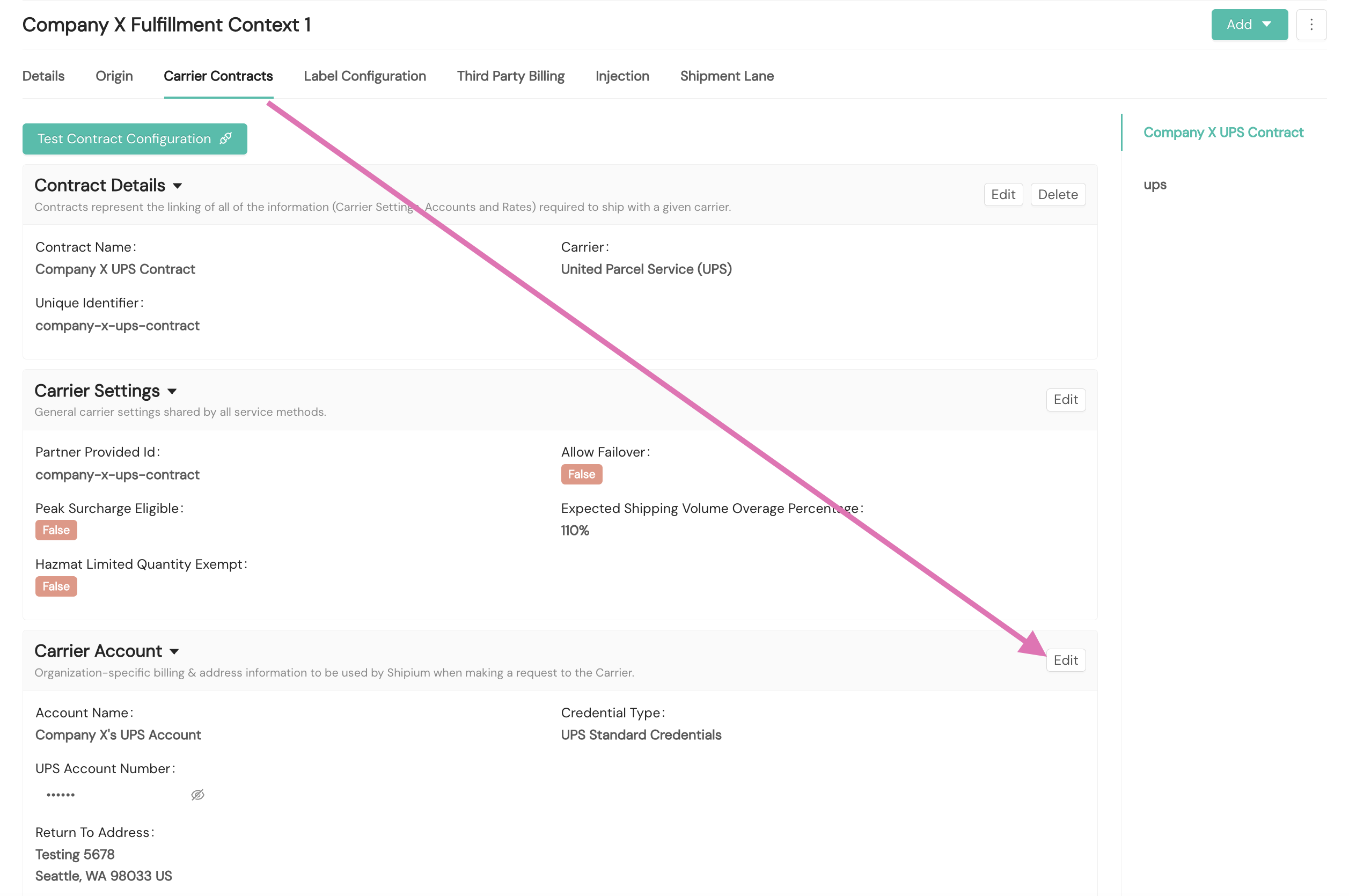
Navigate to Configure > Fulfillment Contexts and select the fulfillment context associated with your will-call workflow.
-
Select the Carrier Contracts tab and click Edit in the Carrier Account section of the contract for your will-call service method. For general guidance on fulfillment contexts and carrier contracts, see Carrier Contracts.
-
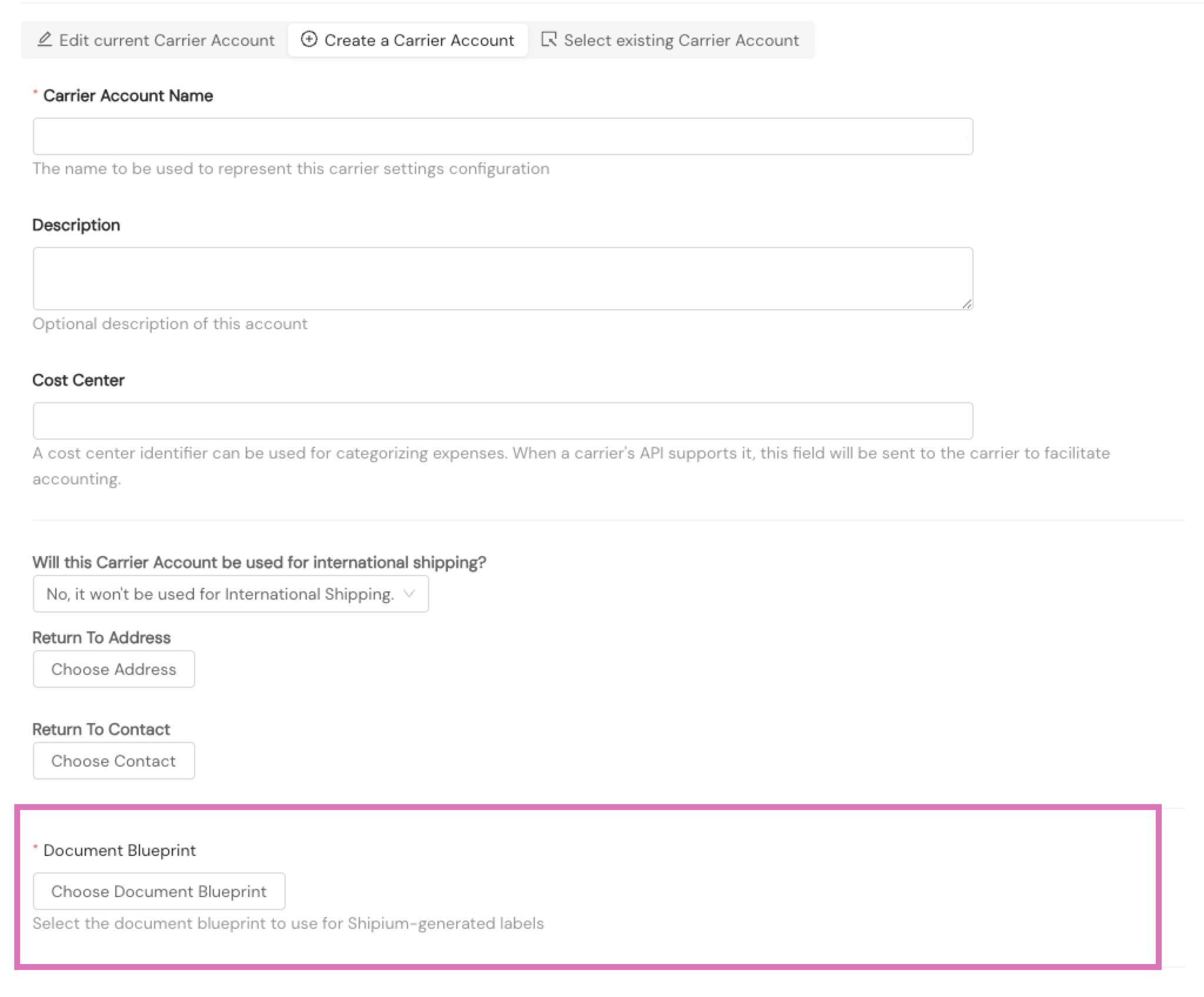
On the Create a Carrier Account or Edit Current Carrier Account page, locate the Document Blueprint field. This field appears on carrier accounts that are configured for Shipium-generated labels. It displays the currently associated blueprint name and request type when one is set.
-
Click Choose Document Blueprint (if no blueprint is currently associated) or Edit Document Blueprint (to update an existing selection).

-
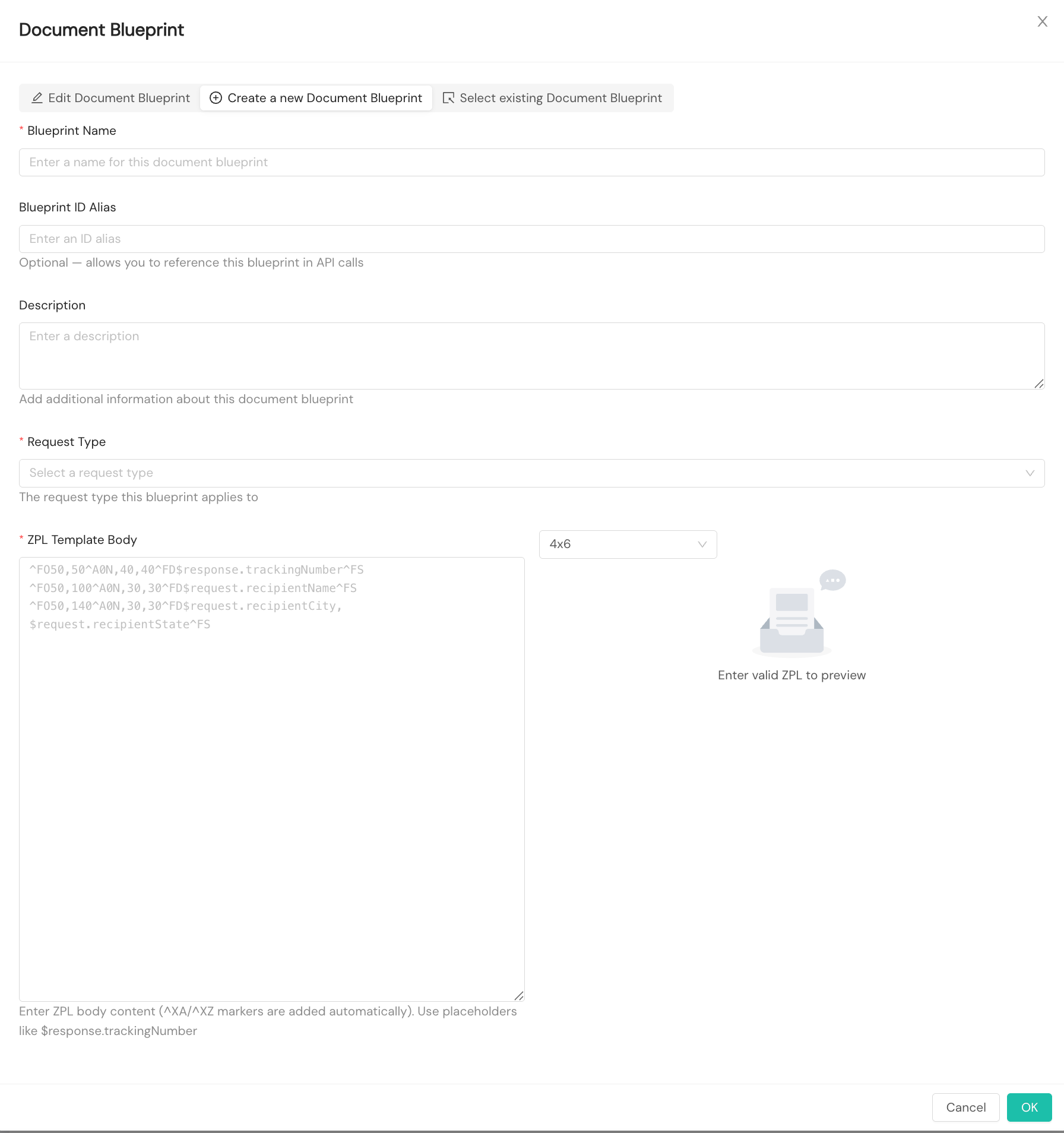
The Document Blueprint modal opens. Select one of the following tabs:
- Edit Document Blueprint. Update the settings or ZPL for the blueprint currently linked to this carrier account. This tab is only present when a blueprint is already associated.
- Create a New Document Blueprint. Create a new blueprint from scratch.
- Select Existing Document Blueprint. Choose a blueprint that has already been configured for your account.
Create a new Document Blueprint
Creating or editing a Document Blueprint requires the Admin role. Selecting an existing blueprint does not.
Your ZPL template body must begin with ^XA and end with ^XZ. If they are missing, the blueprint fails validation.
Complete the following fields in the Create a New Document Blueprint tab.
| Field | Required | Description |
|---|---|---|
| Blueprint Name | Yes | A display name for the blueprint |
| Blueprint ID Alias | No | An alias you can use to reference this blueprint in API calls instead of the Shipium-generated UUID |
| Description | No | Additional information about the blueprint |
| Request Type | Yes | The API request type this blueprint is designed for: Shipment or Labels. Determines which Velocity context objects are available in the template; see Velocity template placeholders. |
| Label Size | Yes | The output dimensions for the rendered label (e.g., 4x6) |
| ZPL Template Body | Yes | The ZPL content for the blueprint. Use Velocity placeholders to insert dynamic shipment values. A live preview renders as you work. The template body must begin with ^XA and end with ^XZ; if they are missing, the blueprint fails validation. When Velocity placeholders are detected in the ZPL, a Detected Placeholders section appears showing the variables found. |
For guidance on Velocity placeholders, see Velocity template placeholders.
Select an existing Document Blueprint
Select the Select Existing Document Blueprint tab, search for the blueprint by name, and select it from the list. The list displays the blueprint name, request type, and ID alias.
- Click OK to confirm your selection.
- Click Save Changes. The carrier account cannot be saved without a Document Blueprint selected.
Use Document Blueprints in API calls
Packing slip request fields
Include the following in your API request body to trigger packing slip generation.
| Field | Details |
|---|---|
shipmentParameters.documentGenerationRequests | Type: Array Optional Description: List of Document Blueprints to generate; omit or pass an empty array to suppress document generation. |
shipmentParameters.documentGenerationRequests[] .documentBlueprintId | Type: String Required when documentGenerationRequests is included; the ID of the Document Blueprint to use; accepts either the Shipium-generated UUID or the alias configured for your account. |
Packing slip response fields
Generated documents are returned at the top level of the API response.
| Field | Description |
|---|---|
shipmentRequestedDocuments | Generated documents corresponding to each requested blueprint |
shipmentRequestedDocuments[].documentBlueprintId | The Shipium-generated UUID of the blueprint used |
shipmentRequestedDocuments[] .partnerProvidedDocumentBlueprintId | The alias your organization provided, if one was configured |
shipmentRequestedDocuments[].documentFormat | Output format: ZPL, PNG, or PDF |
shipmentRequestedDocuments[].documentImage.documentEncoding | Always BASE64 |
shipmentRequestedDocuments[].documentImage.documentContents | The base64-encoded document content |
Examples
Generate a packing slip
The following example demonstrates generating a packing slip alongside a standard label request.
Example cURL call
curl --request POST \
  --url https://api.shipium.com/api/v1/shipment/carrierselection/label \
  --header 'accept: application/json' \
  --header $AUTHSTRING \
  --header 'content-type: application/json' \
  --data 'INSERT REQUEST BODY FROM BELOW'
Request
{
  "currencyCode": "USD",
  "shipmentParameters": {
    "partnerShipmentId": "CSV-ORDER-10042",
    "shipFromAddress": {
      "name": "Crestview Supply Co. Fulfillment Center",
      "street1": "100 Distribution Drive",
      "city": "Columbus",
      "state": "OH",
      "postalCode": "43215",
      "countryCode": "US"
    },
    "destinationAddress": {
      "name": "Jane Smith",
      "street1": "456 Maple Avenue",
      "city": "Charlotte",
      "state": "NC",
      "postalCode": "28201",
      "countryCode": "US"
    },
    "totalWeight": {
      "weight": 3.5,
      "weightUnit": "lb"
    },
    "documentGenerationRequests": [
      {
        "documentBlueprintId": "crestview-pack-slip"
      }
    ]
  }
}
Response
{
  "shipiumShipmentId": "a1b2c3d4-e5f6-7890-abcd-ef1234567890",
  "carrierSelection": {
    "carrier": "ups",
    "carrierServiceMethodId": "ups-ground-service-method"
  },
  "carrierLabel": {
    "carrierTrackingId": "1Z9F0901YW17975733"
  },
  "shipmentRequestedDocuments": [
    {
      "documentBlueprintId": "f7e6d5c4-b3a2-1098-fedc-ba9876543210",
      "partnerProvidedDocumentBlueprintId": "crestview-pack-slip",
      "documentFormat": "ZPL",
      "documentImage": {
        "documentEncoding": "BASE64",
        "documentContents": "XlhBCl5GT..."
      }
    }
  ]
}
Generate a way bill
The following example demonstrates generating a way bill. Include the service method configured for your account in carrierServiceMethodAllowList to ensure the correct label generation workflow is used.
Example cURL call
curl --request POST \
  --url https://api.shipium.com/api/v1/shipment/carrierselection/label \
  --header 'accept: application/json' \
  --header $AUTHSTRING \
  --header 'content-type: application/json' \
  --data 'INSERT REQUEST BODY FROM BELOW'
Request
{
  "currencyCode": "USD",
  "carrierServiceMethodAllowList": ["crestview-pickup-service-method"],
  "shipmentParameters": {
    "partnerShipmentId": "CSV-PICKUP-00287",
    "shipFromAddress": {
      "name": "Crestview Supply Co. Fulfillment Center",
      "street1": "100 Distribution Drive",
      "city": "Columbus",
      "state": "OH",
      "postalCode": "43215",
      "countryCode": "US"
    },
    "destinationAddress": {
      "name": "Crestview Supply Co. Store #12",
      "street1": "789 Commerce Blvd",
      "city": "Charlotte",
      "state": "NC",
      "postalCode": "28201",
      "countryCode": "US"
    },
    "totalWeight": {
      "weight": 2.0,
      "weightUnit": "lb"
    }
  }
}
Response
The way bill is returned in the standard carrierLabel.documents array, encoded in the label format configured for your account.
Generate a way bill and a packing slip together
You can request both in a single API call by combining carrierServiceMethodAllowList with documentGenerationRequests in the same request.
{
  "currencyCode": "USD",
  "carrierServiceMethodAllowList": ["crestview-pickup-service-method"],
  "shipmentParameters": {
    "partnerShipmentId": "CSV-PICKUP-00288",
    "shipFromAddress": {
      "name": "Crestview Supply Co. Fulfillment Center",
      "street1": "100 Distribution Drive",
      "city": "Columbus",
      "state": "OH",
      "postalCode": "43215",
      "countryCode": "US"
    },
    "destinationAddress": {
      "name": "Crestview Supply Co. Store #12",
      "street1": "789 Commerce Blvd",
      "city": "Charlotte",
      "state": "NC",
      "postalCode": "28201",
      "countryCode": "US"
    },
    "totalWeight": {
      "weight": 2.0,
      "weightUnit": "lb"
    },
    "documentGenerationRequests": [
      {
        "documentBlueprintId": "crestview-pack-slip"
      }
    ]
  }
}
Velocity template placeholders
Document Blueprint ZPL templates use Apache Velocity syntax. The context objects available depend on the blueprint's Request Type. Use the correct prefix for your blueprint type; using the wrong prefix will result in an unresolved placeholder.
| Request type | Response object | Request object | Use case |
|---|---|---|---|
| Labels | $label | $request | Way bills for internal carrier workflows; the way bill's own tracking number is not available, since the label is being generated. |
| Shipment | $shipment | $request | Packing slips and other documents generated alongside an outbound shipment; carrier data such as the tracking number and carrier name is available, since the document is generated after the label. |
ImportantWay bills (Labels type) are the label being generated, so a tracking number for that label is not available at generation time. Packing slips (Shipment type) are generated after the label, so carrier data such as the tracking number and carrier name is available to the template.
Example placeholders for a Labels blueprint:
$label.destinationAddress.name: recipient name$label.destinationAddress.street1: recipient address$label.destinationAddress.city: recipient city$label.totalWeight.weight: shipment weight$label.partnerReferenceIdentifier: reference identifier$label.orderItemQuantities: line items$label.shippedDateTime: ship date and time
Example placeholders for a Shipment blueprint:
$shipment.shipFromAddress.company: origin company name$shipment.destinationAddress.name: recipient name$shipment.destinationAddress.street1: recipient address$shipment.destinationAddress.city: recipient city$shipment.totalWeight.weight: shipment weight$shipment.partnerReferenceIdentifier: reference identifier$shipment.orderItemQuantities: line items$shipment.shippedDateTime: ship date and time
Available for both blueprint types:
$request: the request payload Shipium uses to generate the document. The fields available depend on the blueprint's request type. For Shipment blueprints, this is the full shipment request you sent; for Labels blueprints, it is the label-level request Shipium builds for the way bill, which exposes a subset of those fields.$display,$math,$number,$date: Apache Velocity utility tools for formatting values (e.g., truncating long strings or formatting dates)
Velocity's robust formatting capabilities let you control how values render; for example, limiting a field to a maximum number of characters to prevent text from overlapping other label elements.
Contact your Shipium team member for the full list of available placeholder variables for your configured blueprint.
Considerations
- Label augmentations configured in Shipium do not apply to Shipium-generated labels (way bills).
- Multi-page documents are not automatically handled. ZPL does not paginate dynamically; if content exceeds the configured label size, it may overflow. For documents that require multiple pages, configure a separate blueprint for each page.
- Troubleshooting. Packing slip responses include the
documentBlueprintIdinshipmentRequestedDocuments, so you can trace a packing slip to its blueprint directly. Way bill documents incarrierLabel.documentsdo not include the source blueprint ID; to trace a way bill back to its blueprint, decode the ZPL content and cross-reference your configured blueprints in the Console.
Related documentation
- Carrier and Method Selection & Shipment Label API
- Carrier Contracts
- Label Configuration
- Authentication
Resources
Your Shipium team member is available to help along the way. However, you might find these resources helpful:
Updated 3 months ago