
Shipium Orca AI Shared Metrics
Create dashboard pages and share them with people on your team or your whole organization.
About Orca AI Shared Metrics
A Shared Metrics page is a dashboard you build and decide who else can see. Pin the metrics your team relies on, arrange them the way you want them read, and everyone with access works from the same page.
Every page has an owner, and the owner controls access. A page can stay private while you build it, go to a handful of named people, or open to your whole organization. The people who can see a page may or may not be able to change it, which the owner also decides. You set all of this when you create the page, and you can change it at any point afterward.
Reach for a shared page when more than one person needs the same view: a weekly cost review, a carrier scorecard, or a page one person maintains and a team reads. When a view is just for you, use Shipium Orca AI Personal Metrics.
Find your shared pages
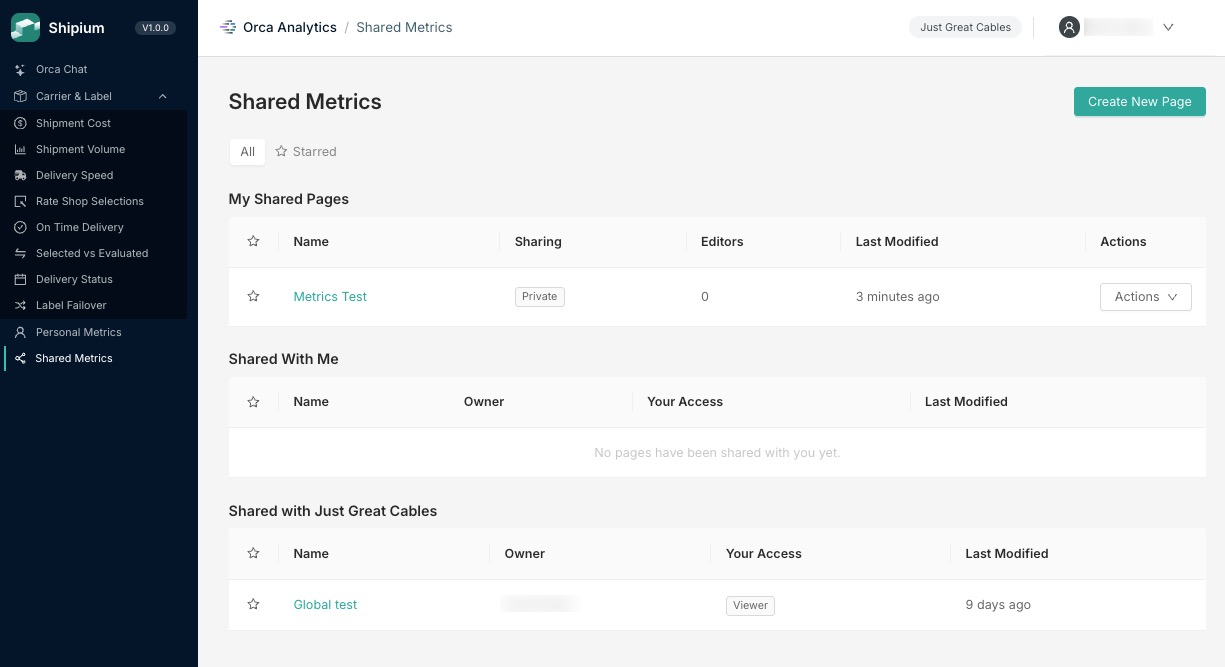
Select Shared Metrics in the left navigation, below Personal Metrics. The landing page groups pages into three sections:
- My Shared Pages. Pages you created; shows the sharing scope, a count of editors, and when the page was last modified, along with an Actions menu.
- Shared With Me. Pages someone shared with you directly; shows the owner and your access level.
- Shared with [Your Organization]. Pages shared with everyone in your organization; the heading uses your organization's name.
A section with nothing in it says so rather than disappearing, so you can always tell which of the three you are looking at. Where a page has a description, it appears as subtext beneath the page name.
Know when something new has been shared with you
When someone shares a page with you, a count appears beside Shared Metrics in the left navigation. Opening the page clears it. Visiting the landing page alone does not, so the count stays until you have actually looked at what is new.
Star the pages you use most
Select the star beside any page to mark it. Use the All and Starred controls above the tables to switch between every page and only your starred ones.
Stars are yours alone. Starring a page changes nothing for anyone else, and you can star any page you have access to, including pages where you are only a viewer.
Create a shared page
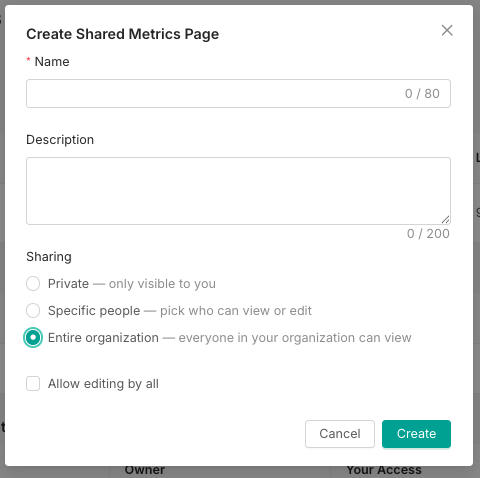
- On the Shared Metrics landing page, select Create New Page.
- Enter a Name. This is required, and limited to 80 characters.
- Optionally enter a Description, limited to 200 characters.
- Choose a Sharing option:
- Private. Only you can see the page. This is the default.
- Specific people. Choose who can view or edit. A People field appears where you add people by name or email address.
- Entire organization. Everyone in your organization can view the page. An Allow editing by all checkbox appears, which extends edit access to everyone rather than view access alone.
- Select Create.
You land on the new page, empty and ready for metrics. Starting a page as Private is a reasonable habit when you intend to build it out before anyone else sees it, since you can change the sharing scope at any time.
Selecting Specific people without naming anyone leaves the page effectively private until you add someone.
Roles and sharing scopes
Every shared page has one owner, and everyone else's access comes from a role.
| Role | Who gets it | What they can do |
|---|---|---|
| Owner | The person who created the page | Everything an Editor can do, plus rename, change sharing, and delete the page |
| Editor | People granted edit access individually, or everyone in the organization when Allow org-wide editing is on | Add, remove, and rearrange metrics, and edit the page layout; cannot change sharing or delete the page |
| Viewer | People granted view access individually, or everyone in the organization when a page is shared organization-wide | Read the page; cannot change its contents |
There are three sharing scopes:
| Scope | Who can see the page |
|---|---|
| Private | Only the owner |
| Specific people | Only the people the owner names, each with their own role |
| Organization-wide | Everyone in your organization, as viewers by default |
Organization-wide sharing and named grants can be combined, and a named grant wins. If a page is shared organization-wide and one person is also named as an Editor, that person can edit while everyone else views. This is useful when a page should be readable widely but maintained by a few people.
Manage sharing on a page
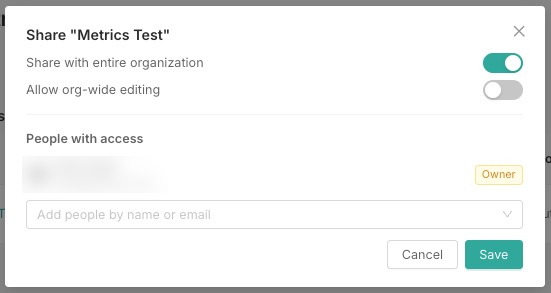
Select Manage Sharing from the page header, or Manage Sharing in the Actions menu on the landing page. Owners see:
- Share with entire organization. Turn on to give everyone in your organization view access.
- Allow org-wide editing. Appears when the organization toggle is on; turn on to give everyone edit access rather than view access.
- People with access. Everyone with an explicit grant; you appear at the top labeled Owner. Every other person has a role selector set to Viewer or Editor, and a control to remove their access.
- Add people. Use the field below the access list to add more people by name or email address.
Select Save to apply your changes, or Cancel to discard them.
When you give someone access to a page, they receive an email letting them know.
Pin metrics to a shared page
Pinning works the same as it does for Personal Metrics. Hover a metric anywhere in Orca AI Analytics, open the ... menu, and select Pin. Your shared pages appear in the destination list alongside Personal Metrics, listed under All Dashboards.
Select a destination and then Pin.
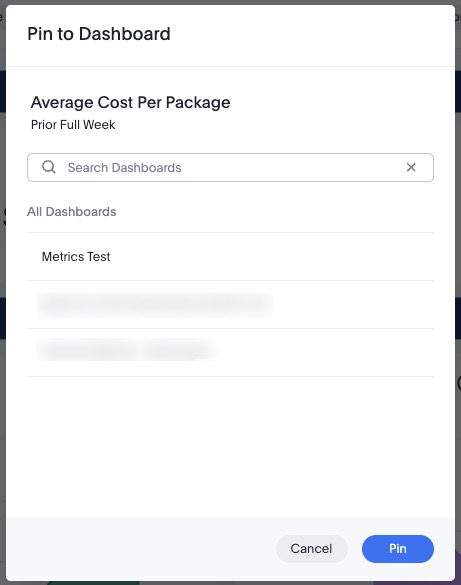
Only pages you own or can edit are available as destinations. A page where you are a viewer does not appear in the list.
When you pin a metric, its visualization configuration travels with it, so the chart type and breakdown you set are preserved. A default set of filters travels with it as well, which may not match every filter applied on the dashboard you pinned from. Anyone with edit access to the shared page can add, change, or remove filters on the page.
Schedule a page for recurring delivery
You can have a shared page delivered by email on a schedule instead of opening it each time.
- Open the
...menu on the page and select Schedule, then Create schedule. - Enter a Schedule name. Select Add comment to include a note with the delivery.
- Under Send every, choose how often the page goes out, the time of day, and the days of the week. Select the time zone below the day selector to change it.
- Under Select attachment type, choose the format the page arrives in. Show advanced PDF settings offers additional layout options for PDF deliveries.
- Under Add recipients, add people by name or email address.
- Under Views, confirm which version of the page to send. The filters applied to that view are listed below it, so you can confirm what recipients will see before you save.
- Select Create. To send the page immediately rather than waiting for the next scheduled run, select Send now.
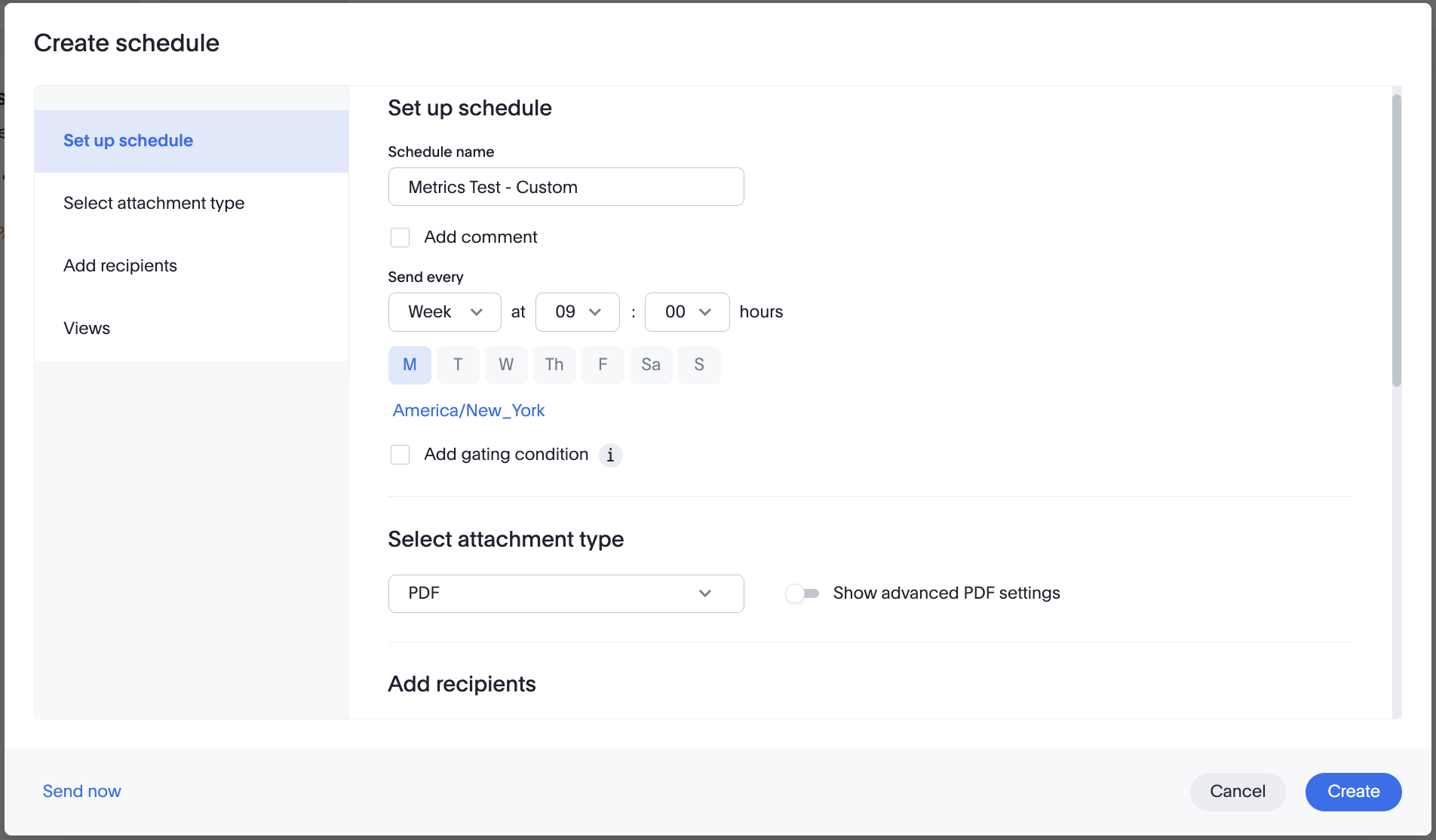
To change or remove a schedule, open the ... menu and select Schedule, then Manage schedules.
Scheduling is available to everyone who can open a page, including viewers. Creating a schedule does not change the page or anyone's access to it.
Work on a shared page
The page header shows the page name, its description, a star, when the page was last edited, and your access level. Which controls appear depends on your role:
| Control | Owner | Editor | Viewer |
|---|---|---|---|
| Edit details, for changing the name and description | Yes | No | No |
| Manage Sharing | Yes | No | No |
| Edit, for changing the page contents and layout | Yes | Yes | No |
... menu | Yes | Yes | Yes |
Edit mode offers the same controls described in Shipium Orca AI Personal Metrics: Add tab, Add note, Add filter, then Cancel or Save. An Orca panel is also available while editing, offering to help build the page.
The ... menu offers Download PDF, Present, and Schedule, and is the same for every role. See Schedule a Page for Recurring Delivery for setting up delivery. Present is unavailable until the page has at least one metric on it.
Viewers see the page read-only. There is no control for requesting edit access, so a viewer who needs to make changes has to ask the page owner directly.
Updated 3 months ago