
Order-to-Ship
Order-to-Ship lets Delivery Promise use how long your origins actually take to ship orders, measured from your recent shipments, instead of a fixed value you enter.
About Order-to-Ship
Every origin takes some time to get an order out the door, from the moment a customer places it to the moment the package is handed to a carrier. Delivery Promise uses that order-to-ship time to calculate the estimated ship date, the estimated delivery date, and the order-by cutoff it returns.
Without Order-to-Ship, that time comes from the Expected Days To Ship value your organization enters on each origin's schedule. (See Origins for how schedules are set up.) With Order-to-Ship, Shipium measures the time from your recent shipments and keeps it up to date, so your delivery promises reflect how each origin has been shipping recently. Because Delivery Promise chooses the origin that can deliver soonest, the measured time can also change which origin a promise uses.
You can override the measured time for an origin in the Shipium Console, and you can use shipment tags to get separate times for different kinds of shipments.
What your organization does
- Ask your Shipium team member to turn on Order-to-Ship.
- Keep creating shipments with the Carrier and Method Selection & Shipment Label API, with the order time included. See What Your Shipments Need to Include.
- Optionally, set an override to serve your own time for an origin. See Set an Override.
- Optionally, turn on shipment tags. See Use Shipment Tags.
Before you startOrder-to-Ship measures the shipments your organization creates through Carrier Selection with the Carrier and Method Selection & Shipment Label API, and uses the result in your Delivery Promise estimates. Shipium turns it on for your organization, and once it is on, it applies to every origin your organization has configured.
Order-to-Ship only changes Delivery Promise estimates. It doesn’t change how Carrier Selection or the Fulfillment Engine choose carriers or set ship dates.
How Shipium chooses the order-to-ship time
For each origin, Shipium uses the first of these that is available:
- An override your organization has set on the origin's schedule
- The calculated time Shipium measures from your recent shipments
- Expected Days To Ship (Fallback), the value on the origin's schedule
For example, when an override ends and Shipium does not yet have a calculated time for that origin, the fallback value is used. This override is the one you set on the Order-to-ship card in the Console. It’s separate from the shipDateOverride field on a Delivery Promise request, which sets the ship date directly. See How Order-to-Ship Appears in Delivery Promise Responses.
How the calculated time is measured
Shipium measures how long each order took from being placed to shipping, using each origin's recent shipments. Days the origin doesn't ship, including holidays configured on its schedule, don't count toward that time. Shipium uses a time that most of your recent orders from the origin meet, and recalculates it several times a day.
An origin starts using a calculated time once it has enough recent shipments. There is nothing to set up: until then, the origin uses its Expected Days To Ship (Fallback) value, and estimates are returned as normal.
What your shipments need to include
Shipium measures each origin from the shipments your organization creates for that origin with the Carrier and Method Selection & Shipment Label API. A shipment counts whether or not you create a label with that call. For a shipment to count:
- Include the order time. Send
shipmentParameters.orderedDateTimewith the date and time the customer placed the order. A value of exactly midnight UTC (T00:00:00Z) is not counted, so send the actual time. - Send it outside test mode. Shipments sent in test mode, and shipments whose label was created in test mode or later voided, are not counted.
Set an override
An override serves a time your organization chooses in place of the calculated time. Use one when you know an origin's shipping speed is about to change, such as during a peak period or a temporary disruption, or when you want an origin to keep using a fixed time.
An override applies to every origin linked to the scheduleThe override is set on the schedule’s current entry, not on a single origin. If several origins share the schedule, all of them use the override. The Console reminds you of this when you edit the schedule.
The Order-to-ship card appears in the Console only when Order-to-Ship is on for your organization.
To set an override:
- In the Shipium Console, go to Configure, select Fulfillment Contexts, and then select the fulfillment context for the origin.
- On the Origin tab, in the Origin Schedule section, select Edit.
- Select Edit current Schedule Entry.
- On the Order-to-ship card, select Override.
- In Order to ship time to serve instead, enter the time to use. Use the list next to the field to enter it in days and hours (Time), in Hours, or in Days. A value of
0means the origin ships the same day. - In Override lasts until, choose the date and time the override ends. The Console shows the end time in the origin's time zone. To keep the override in place until you switch back, leave the field empty.
- Select Save Changes. Delivery Promise estimates use the new override within a few minutes of saving.
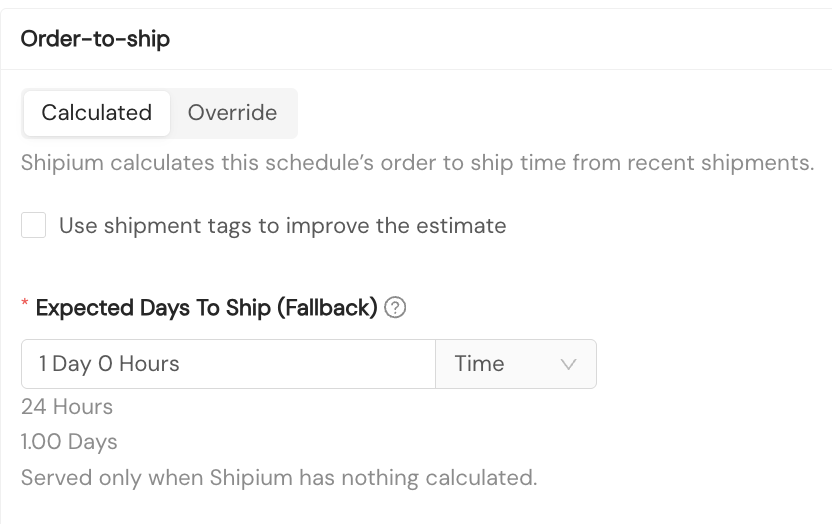
Calculated selected
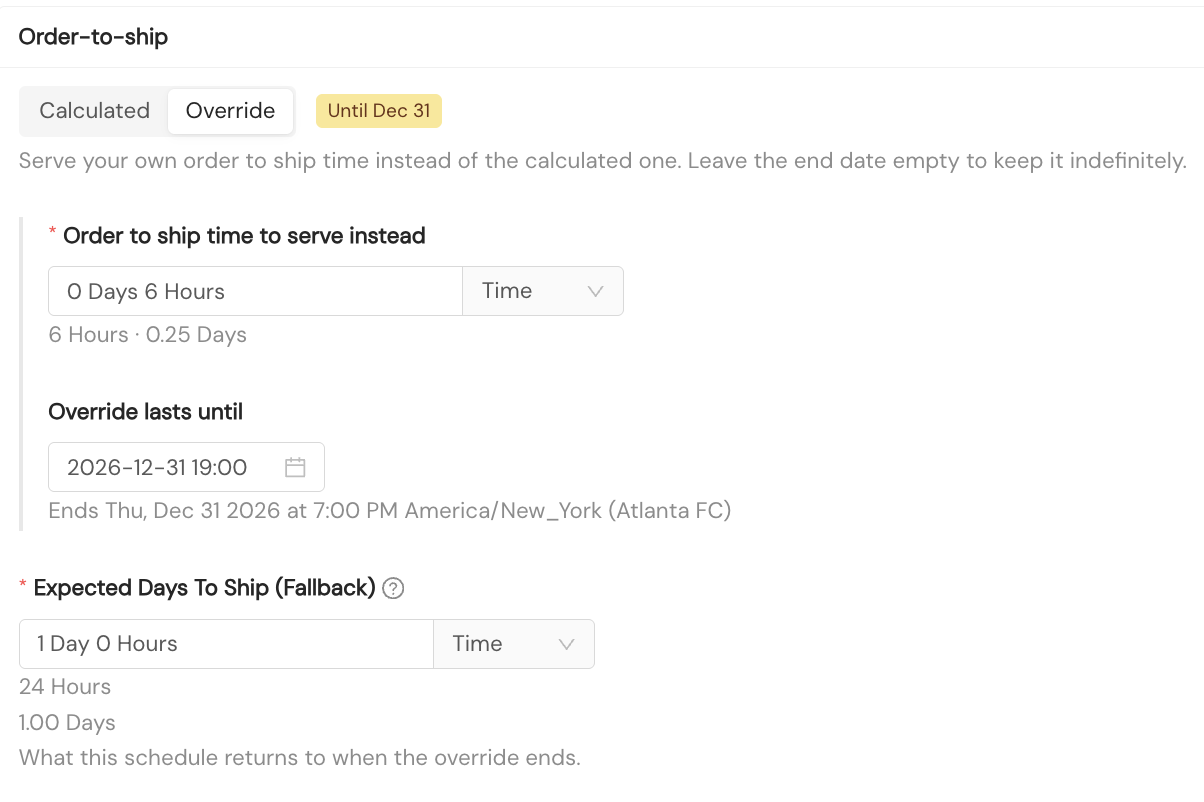
Override with an end date
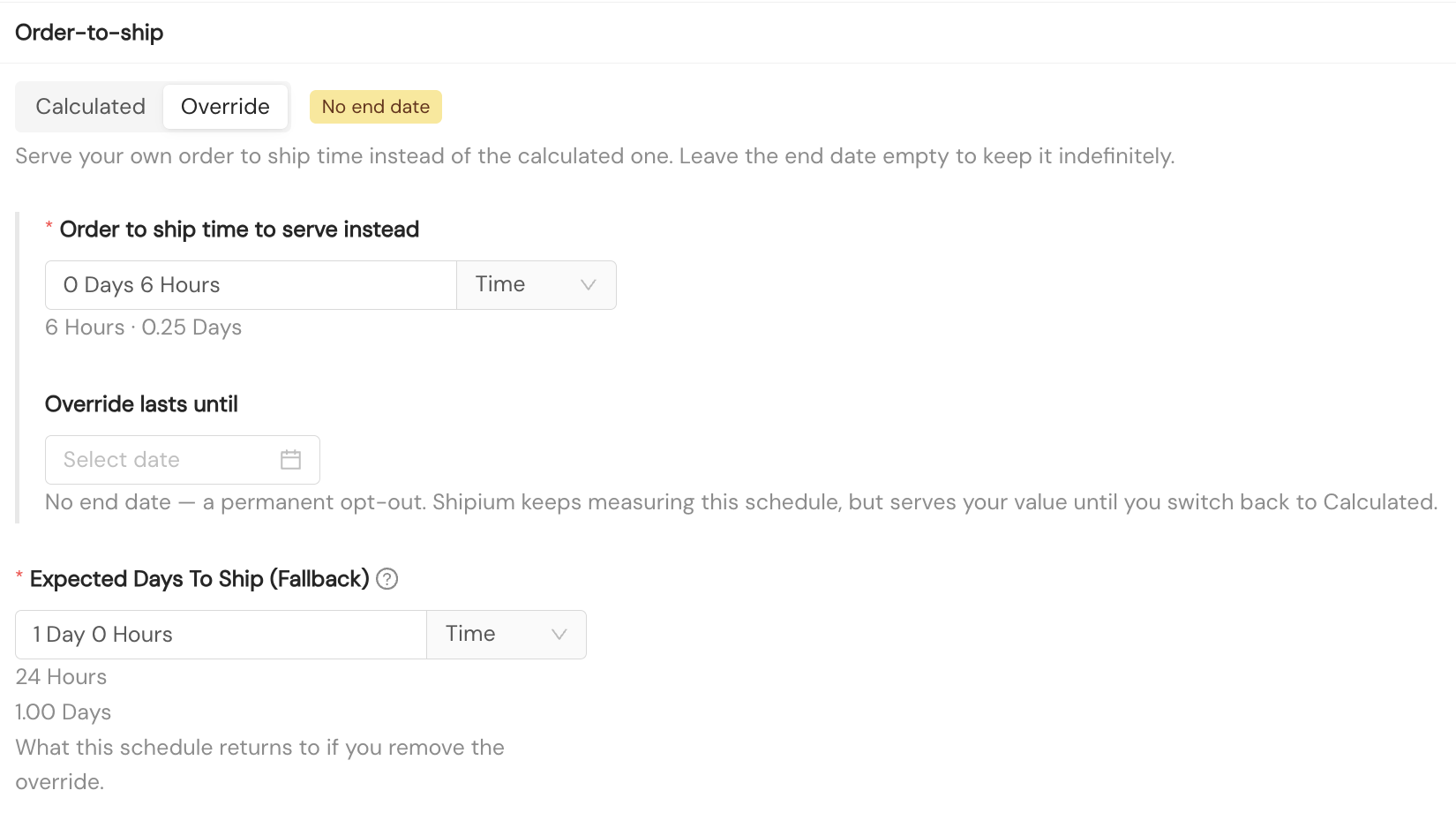
Override with no end date
The override controls appear only when you edit the current schedule entry. They do not appear when you add a new schedule entry or create a new schedule.
Change or end an override
- To change an override, follow the same steps, update the time or end date, and select Save Changes.
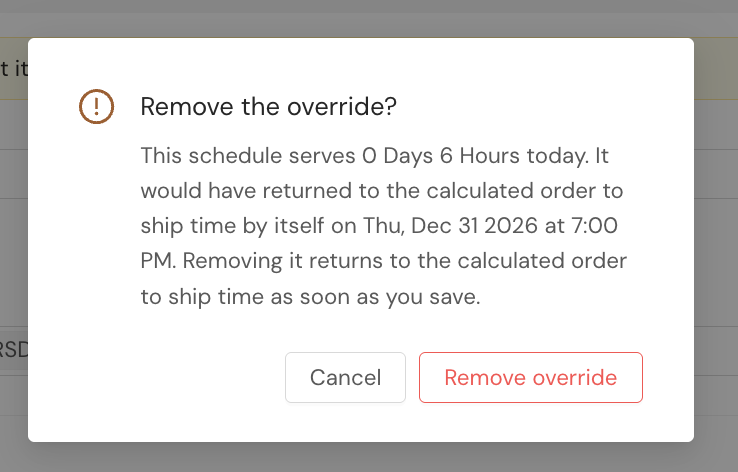
- To end an override now, select Calculated on the Order-to-ship card. In the Remove the override? dialog, select Remove override, and then select Save Changes. Shipium keeps measuring your shipments while an override is in place, so there’s no wait for a new calculation: if the origin has a calculated time, new estimates use it within a few minutes of saving. If it doesn’t, the Expected Days To Ship (Fallback) value is used.
An override belongs to the schedule entry that’s current when you set it. If a later schedule entry takes effect, the override stops applying, even if its end date hasn’t passed, and the new entry starts without one. To keep using your own time, open the schedule with Edit current Schedule Entry after the new entry takes effect and set the override again.
When an override reaches its end date
The override stops applying at the end date and time. Shipium then uses the calculated time for the origin, or the Expected Days To Ship (Fallback) value if no calculated time is available. The card's status shows when the override ended.
An override with no end date stays in effect until you select Calculated and save.
Use shipment tags
If some of your shipments take longer to get out the door than others, such as frozen goods that need extra handling, shipment tags let Shipium calculate a separate order-to-ship time for each kind.
Turn on shipment tags for a schedule
- Follow steps 1 to 3 in Set an Override.
- On the Order-to-ship card, with Calculated selected, select Use shipment tags to improve the estimate.
- Select Save Changes.
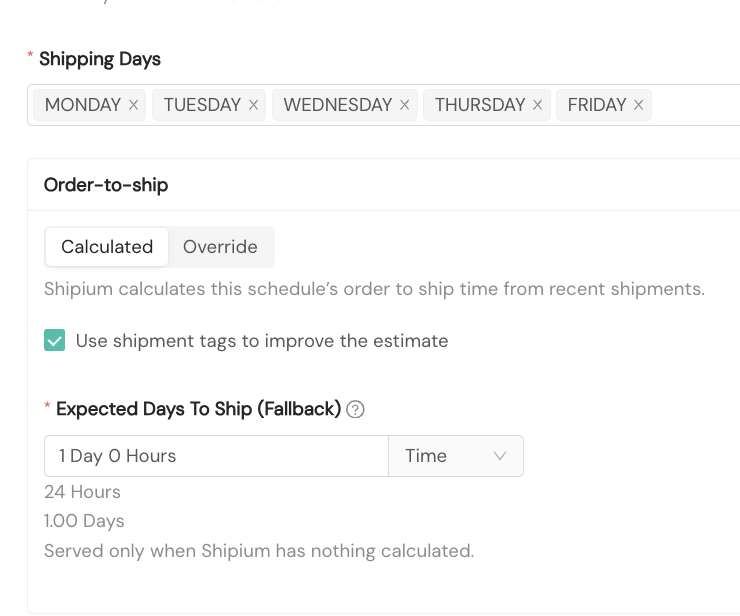
The tags option is not available while Override is selected. An override applies to all shipments from the schedule's origins, regardless of tags.
How tags work
Shipium groups your shipments by the tags you send in shipmentTags on your Carrier Selection requests. A tag group is a shipment’s whole set of tags, so a shipment tagged FROZEN and a shipment tagged FROZEN and DRY_ICE belong to different groups. A tag group gets its own order-to-ship time once it has enough recent shipments.
On your Product View and Cart Checkout requests, send the same tags in shipmentTags. When shipment tags are turned on for the schedule and the tags on a request match a tag group, Shipium uses that group’s time. Otherwise, it uses the origin's time. Capitalization and spaces don't affect matching.
Use tags that describe how a shipment is handledTag shipments with labels that many shipments share, such as
FROZEN. If your shipments also carry a tag that’s different every time, such as an order number, each shipment ends up in a group of its own, and no group collects enough shipments to get its own time.
How Order-to-Ship appears in Delivery Promise responses
shippingOrigin.originProcessingDaysreports the order-to-ship time used for the estimate, whether it came from an override, the calculated time, or the fallback. It may be fractional; a value of0means the origin ships the same day.shipEstimateDateanddeliveryEstimateDatereflect the order-to-ship time.customerOrderCutoffandcustomerOrderCutoffUTCgive the latest moment a customer can order and still ship onshipEstimateDate.
When a request includes shipDateOverride, the date you supply is used as the ship date. The response still reports the order-to-ship time in originProcessingDays, and customerOrderCutoff and customerOrderCutoffUTC are returned as null.
When a request supplies a fromCountryCode and fromPostalCode pair that does not match one of your configured origins, no order-to-ship time is used and originProcessingDays returns no value.
Expected Days To Ship (Fallback)
When Order-to-Ship is on, the Expected Days To Ship field on each origin schedule is labeled Expected Days To Ship (Fallback). It is still required. Shipium uses it whenever no override is in effect and no calculated time is available, including for a new origin that hasn't yet shipped enough orders.
Set it to a realistic value for the origin. A value of 0 means the origin ships the same day, not that no value is set.
Resources
Updated about 17 hours ago