Orca AI Assistant
The Orca AI Assistant is a conversational interface for exploring your shipping data and generating custom visualizations.
About the Orca AI Assistant
The Shipium Orca AI Assistant helps you go from idea to insights using a chat-style interface. You describe what you want to know, and Orca returns visualizations, tables, or analyses in response. If you're new to conversational AI, you'll find the natural language interface easy to pick up.
Use the Orca AI Assistant
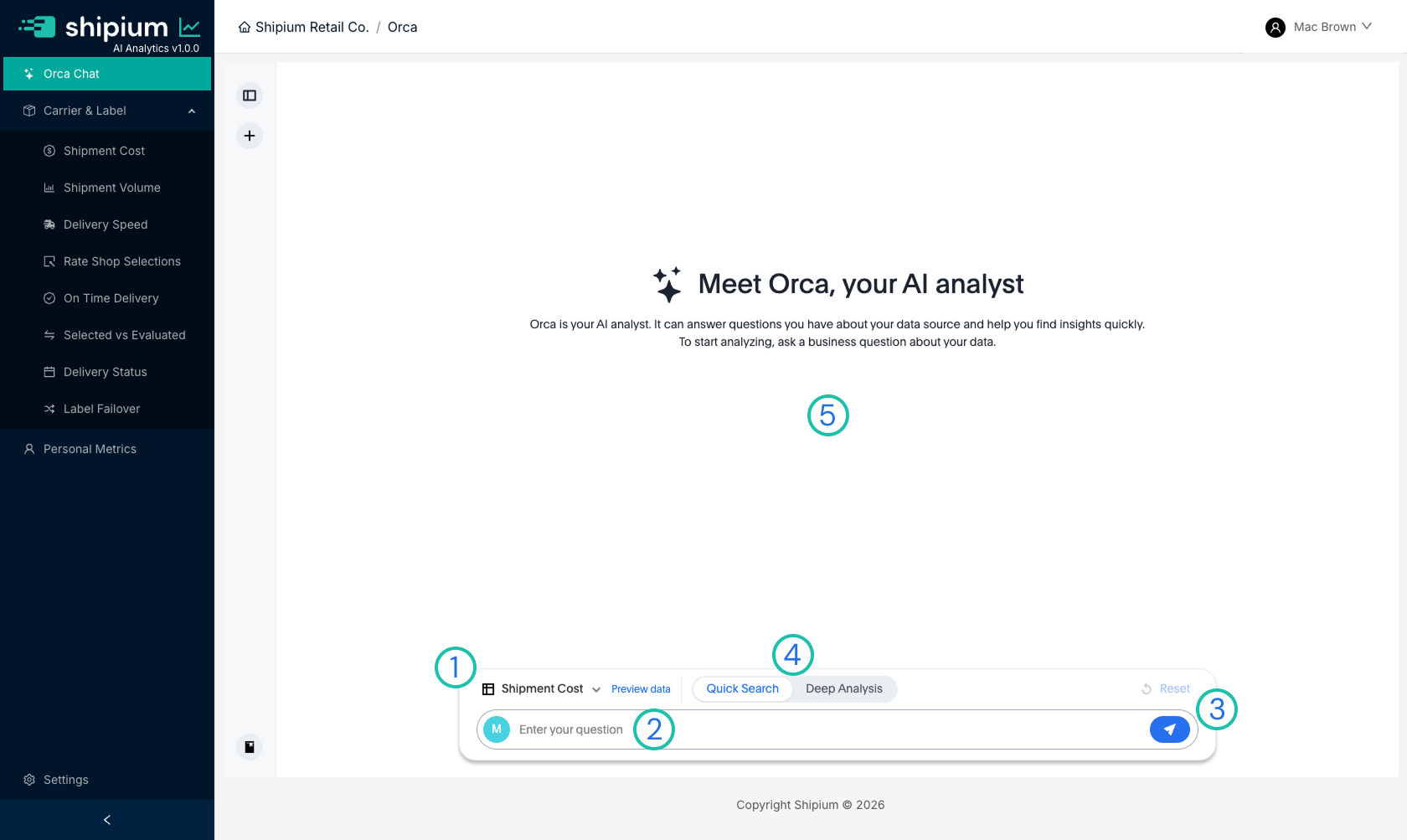
The image above shows the four main elements of the Orca AI Assistant interface, each labeled with a number. The steps below describe how to use each element.
Step 1. Select a data set
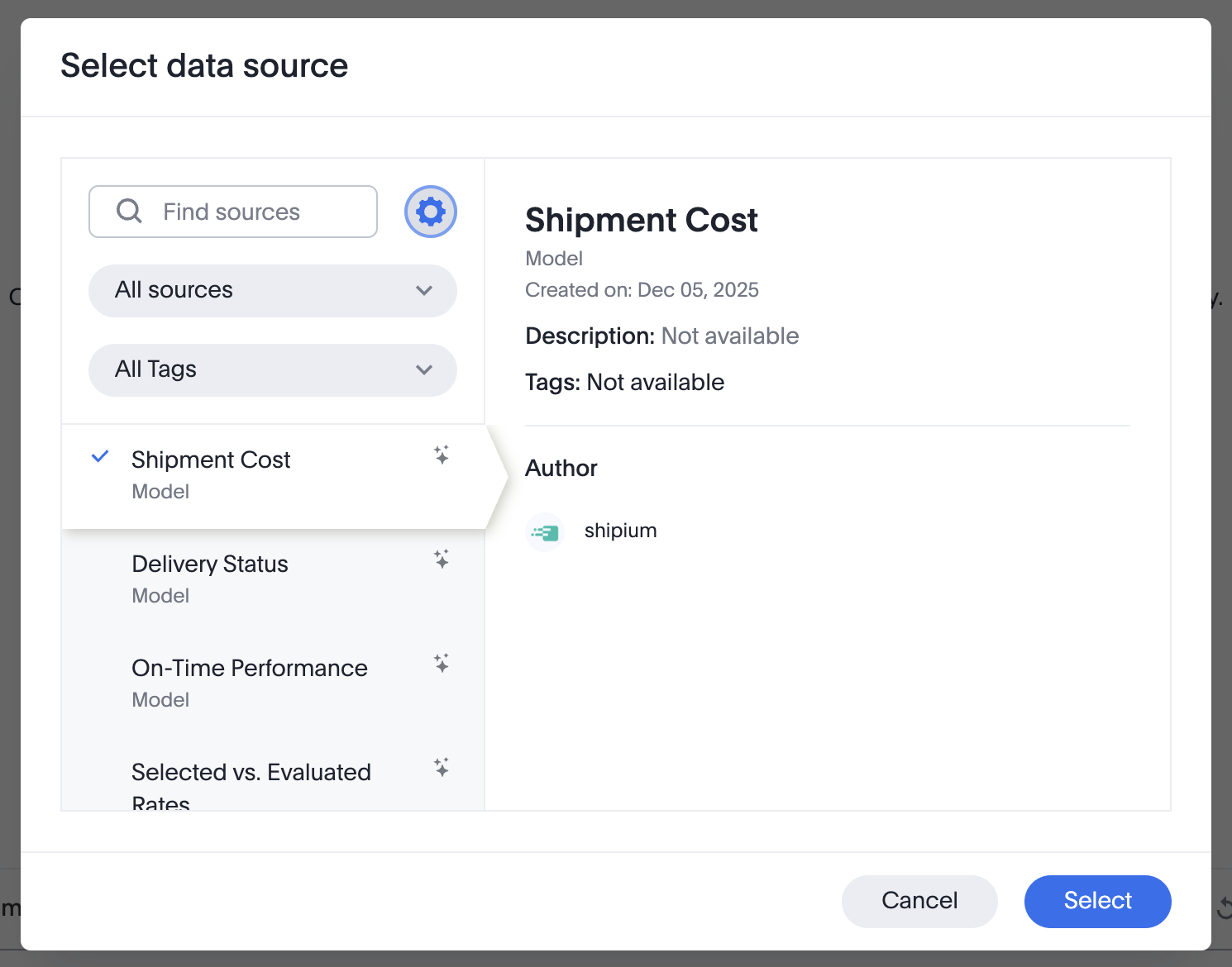
Select the appropriate data set for your request using the model selector. When you click on it, you'll see a list of available data sets. These are organized by topic — for example, "Shipment Cost" is useful for cost-related questions, and "Delivery Speed" is useful for transit time analysis. In some cases, more than one data set may work for your question; you can choose whichever is most relevant.
Within the Select data source popup modal, you can use the gear icon to select filters for your data source and any applicable tags. In addition, the Preview data feature allows you to preview your selected data set before submitting your question related to the data.
Step 2. Enter your request
Clicking in the chat field will allow you to start typing a request. Be as specific as possible (and reasonable) to maximize your chances of getting exactly what you want. You can find recommendations and examples in Sample Orca AI Agent Questions and Examples and additional guidance in Orca AI Agent Tips & Best Practices.
Step 3. Submit your request
When you are happy with your request (or just want to try what you have so far), you can either click on the submit arrow icon or just press Enter to submit your chat entry. Orca will begin processing and display the results in the response canvas above.
To start over, click the Reset link to clear your history. You'll be prompted to confirm before anything is cleared.
Reloading the page or switching to another page in the browser window will reset the current conversation in Orca AI Analytics chat.
Step 4. (Optional) Use Deep Analysis
For most use cases, like pulling metrics, producing data visualizations, or asking straightforward questions, the Quick Search is going to be a good option and will be faster. If you are asking a question that requires more detailed analysis, however, you will find that the Deep Analysis mode spends more time to get a more detailed answer. In some cases, you may want to start with Quick Search and then switch to asking again with Deep Analysis if you feel like the standard search was not detailed enough for your use case.
Step 5. View your results
Results appear in the response canvas above the chat field. Previous responses remain visible and can be scrolled to until you reset or navigate away.
Results come in several forms depending on your request: visualizations (such as line graphs, pie charts, or bar charts), data tables, or more detailed analyses for complex questions. In all cases, they appear in the same place and can be scrolled to, copied and pasted from, etc.
Recommendations for using the Orca AI Assistant
First, you should understand that you can't break anything using the Orca AI Assistant. It uses your data to answer questions, but can't update it. You should feel free to try different questions or styles to get the kinds of results that you want with no fear of doing any damage.
We would suggest that you look at the Sample Orca AI Agent Questions and Examples and Orca AI Agent Tips & Best Practices and then just start asking basic questions about your data as the best place to start learning and doing.
Additional resources
- Sample questions and examples. Sample Orca AI Agent Questions and Examples
- Tips & best practices. Orca AI Agent Tips & Best Practices
Updated 2 months ago